You send a Word file and on the other person's screen the fonts have changed, an image has jumped to the next page and the table is broken. The simplest fix is to send a PDF. In this guide you will see exactly how to use our word to pdf converter free tool to convert Word to PDF free in three clicks, with no software to install.
Why use FreePDFtxt to convert Word to PDF?
FreePDFtxt's Word to PDF tool is an online Word to PDF converter that runs in your browser. You upload a document, it builds a clean PDF, and you download it. Here is what you get:
- DOC and DOCX support: older
.docfiles and modern.docxfiles both work. - Layout preserved: the converter keeps your fonts, images, tables and page layout as closely as possible.
- No installation: works on Windows, Mac, Android and iPhone from any browser.
- Private: files are processed on the server and deleted automatically after 20 minutes. They are never shared with third parties.
How to convert Word to PDF free (3 easy steps)
Step 1: Open the tool and upload your Word file
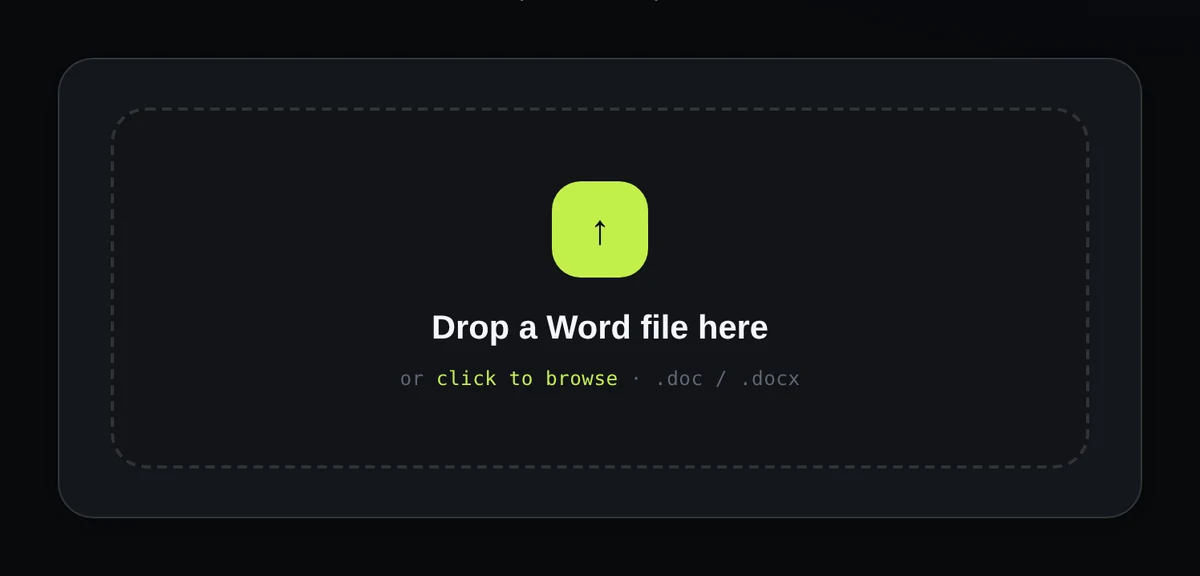
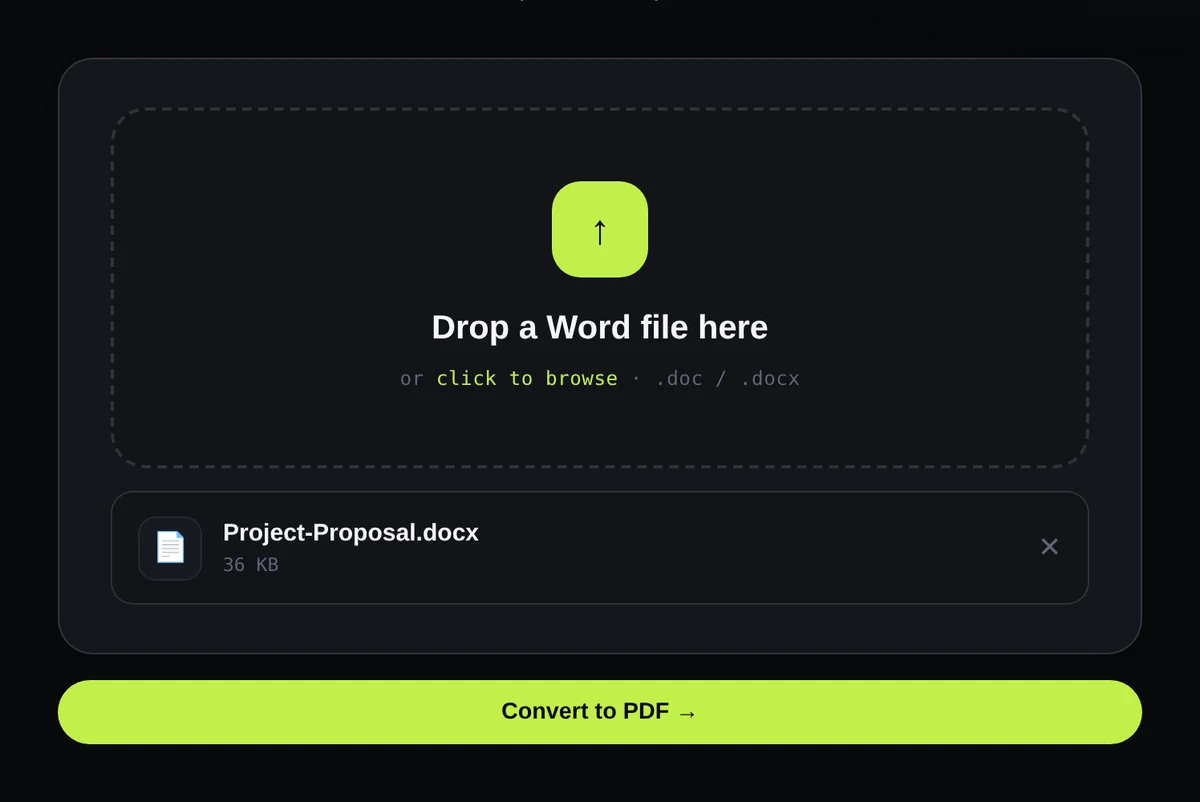
Go to the FreePDFtxt Word to PDF tool. You will see a large upload box that says "Drop a Word file here". Drag your .doc or .docx file into the box, or click it to browse your computer or phone. Your file name and size appear right away, and you can press the × button if you picked the wrong file.
Step 2: Click "Convert to PDF"
Once your file is selected, a "Convert to PDF →" button appears under the upload box. Click it. The page switches to a short loading screen that reads "Converting to PDF… Preserving fonts & layout". Most documents finish in a few seconds. Larger files with many images can take a little longer.
Step 3: Download your PDF
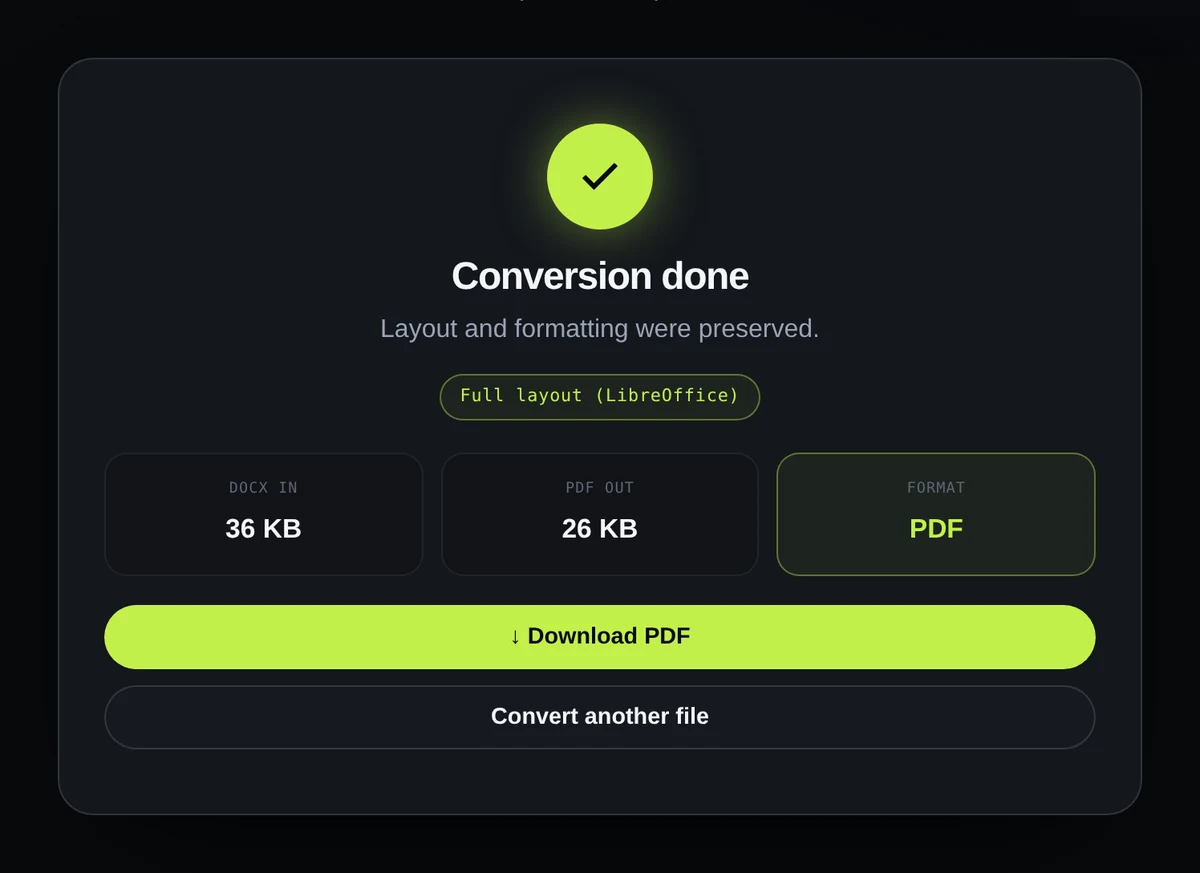
When the conversion is done, you will see a "Conversion done" card with the size of your original DOCX and the size of the new PDF, so you can compare them. Press "↓ Download PDF" to save the file. If you have more documents, click "Convert another file" and repeat the same steps.
Convert Word to PDF on your phone
The tool works the same way on Android and iPhone. Open FreePDFtxt Word to PDF in your phone's browser, tap the upload box, choose your document from your files or Google Drive, then tap Convert to PDF and Download PDF. No app is needed.
How to convert Word to PDF without losing formatting
Most formatting problems start in the Word file, not in the converter. These habits prevent almost all of them:
- Use common fonts such as Arial, Calibri or Times New Roman. A rare font that is missing on the converting system is replaced by another one.
- Use high-resolution images and make sure they are not floating over text by accident.
- Check page breaks and margins in Word before you upload.
- Open the PDF after converting and scroll through it once before you send it.
What to do after converting
Once you have your PDF, you can keep working with it using other FreePDFtxt tools. Compress the PDF if it is too big for email (see our guide on compressing a PDF without losing quality), merge several PDFs into one file, or add a password before sharing something private. Need to edit the text again later? Convert the PDF back to Word. You can also try Excel to PDF and PowerPoint to PDF.
Troubleshooting
- The convert button does not appear: make sure your file ends in
.docor.docx. Other formats are not accepted by this tool. - You see an error message: the file may be damaged, password-protected or larger than your plan's upload limit. Check the limits on the Pricing page, then try again.
- The layout looks slightly different: switch to a standard font in Word, save the file and convert again.
Frequently asked questions
Is this word to pdf converter really free?
Yes. You can convert Word to PDF free on FreePDFtxt without creating a watermark on your file. See the Pricing page for plan limits such as maximum file size.
Can I convert DOCX to PDF without losing formatting?
Yes. The converter keeps your fonts, tables, images and margins as closely as possible. Use standard fonts and check your page breaks in Word first for the best result.
Does it work with both DOC and DOCX?
Yes. Both the older .doc format and the modern .docx format can be converted.
Are my files safe?
Your files are processed privately on the server, deleted automatically after 20 minutes and never shared with third parties.
Do I need to install any software?
No. Everything runs in your browser on desktop and mobile.